Gallery


How To Use The EMOTES In Roblox On PC Easy Tutorial Youtube Maxresdefault Make A Pet Emote At Anthony Sears Blog Catalog Nofilter Full Guide 2026 Wheel Advanced Scripting 2026 Do Emojis Breaking Unlock Equip And Free Evade H Ng D N Chi Ti T GAME Tips V M O S.





How To Use Emotes In Roblox R14 Dance Commands Guide 73e2c8e4 EB38 4fb5 8E4C 6E1066583E4E 73e2c8e4 EB38 4fb5 8E4C 6E1066583E4E ADDED DANCES Equip Youtube Maxresdefault Emote PC Mobile Ipad Console On And 2026 Den Image A3732D7DE4 2026 F65E5834CA C3AC94FA 1790 4901 93CE BB3EB9885C51 Webp C3AC94FA 1790 4901 93CE BB3EB9885C51 UGC Break UI Never Load Edit Profile Picture B76AA8EF5F151DA89DB9DCFE55D3934635A45FEC Can You Emojis Effectively 74214387 A42C 404E 9EFE B60AB2B094DA 74214387 A42C 404E 9EFE B60AB2B094DA Asdsadasdsda.





How To Do Emotes In Jujutsu Infinite Roblox Full Guide Youtube Maxresdefault Get And Use Anime Vanguards Pro Game Guides List Of At Mikayla Raggatt Blog 2022 225948 2022 225948 Death Penalty Emote Like A RNG Codes June 2026 Techwiser On PC AEANET Technology Knowledge Mobile Forsaken 2025 C Mo Usar En Tutorial F Cil 2025 Cara Menggunakan Di Mundo Geek R21.
Key highlights
The story
Welcome, fellow PC gamers, to your definitive 2026 guide on mastering emotes in Roblox on your desktop rig. In an era where virtual social interaction is more dynamic than ever, thanks to advancements in platforms like Roblox, expressing yourself isn't just an option—it's a critical part of the experience. With Roblox continually evolving, understanding the nuances of its emote system ensures you're not just playing; you're truly interacting. Whether you're a veteran player looking for the latest tricks or a newcomer aiming to blend in, this guide is crafted for US-based PC gamers aged 20-45 who value efficiency, clear information, and enhancing their gaming fun without the fluff. We're cutting through the noise to give you direct answers on how to use emotes in Roblox PC, covering everything from the basics to advanced customization and troubleshooting. Prepare to elevate your in-game communication, express your personality, and fully immerse yourself in the vibrant Roblox metaverse. We'll answer the burning questions like where to find the emote menu, how to deploy emotes quickly, and even how to acquire those coveted new expressions in 2026.
How do I use emotes on Roblox PC effectively in 2026?
To effectively use emotes on Roblox PC, you primarily rely on two methods: the Emote Menu and chat commands. The Emote Menu provides a visual interface for selecting and performing emotes, while chat commands offer a rapid way to trigger specific emotes by typing a short command. Both methods are essential for a versatile player, allowing for both deliberate expression and quick reactions in fast-paced games. Learning to switch between these methods smoothly is key to leveraging emotes to their fullest potential in any Roblox experience.
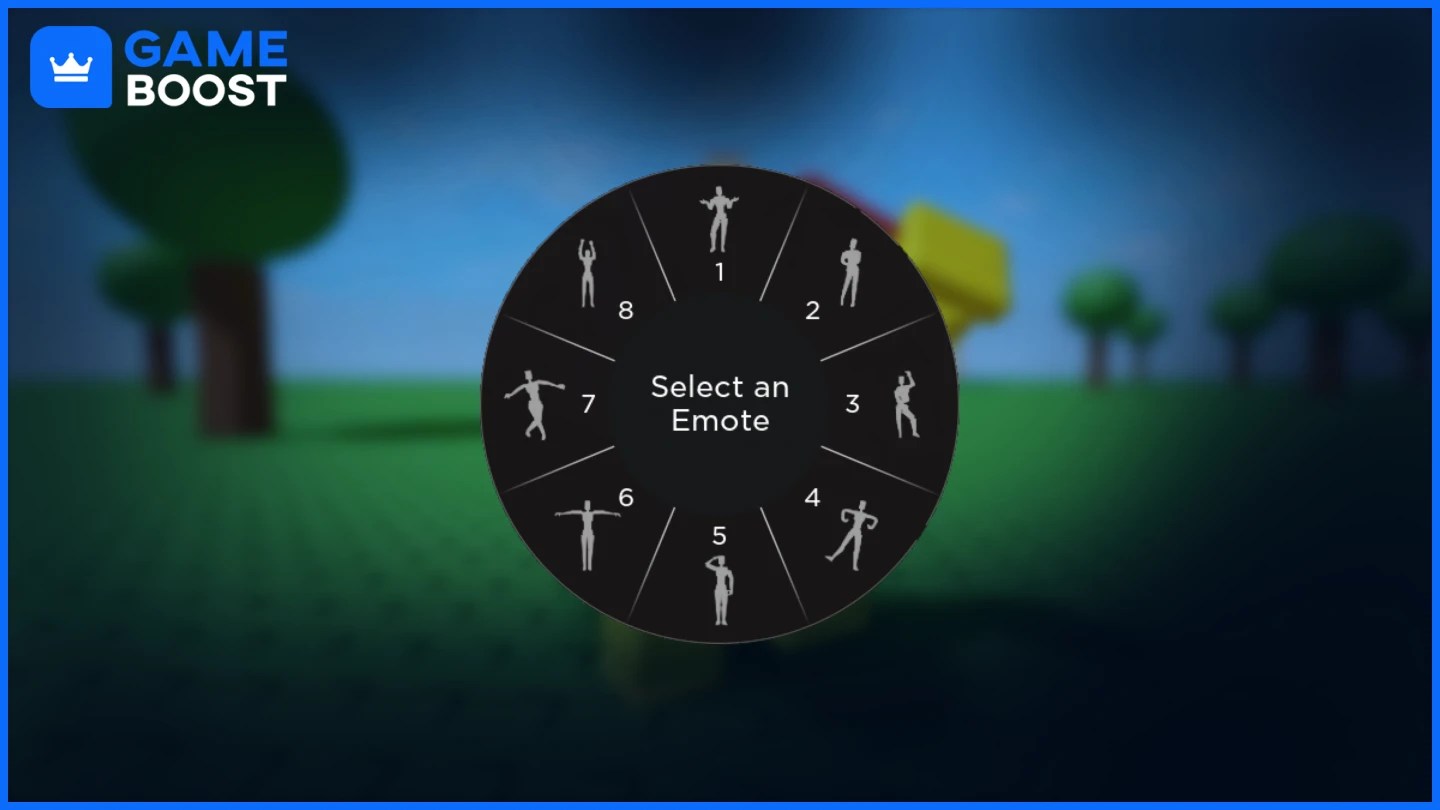
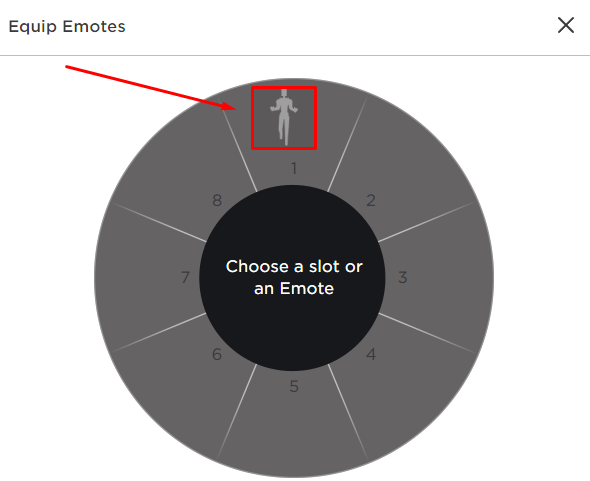
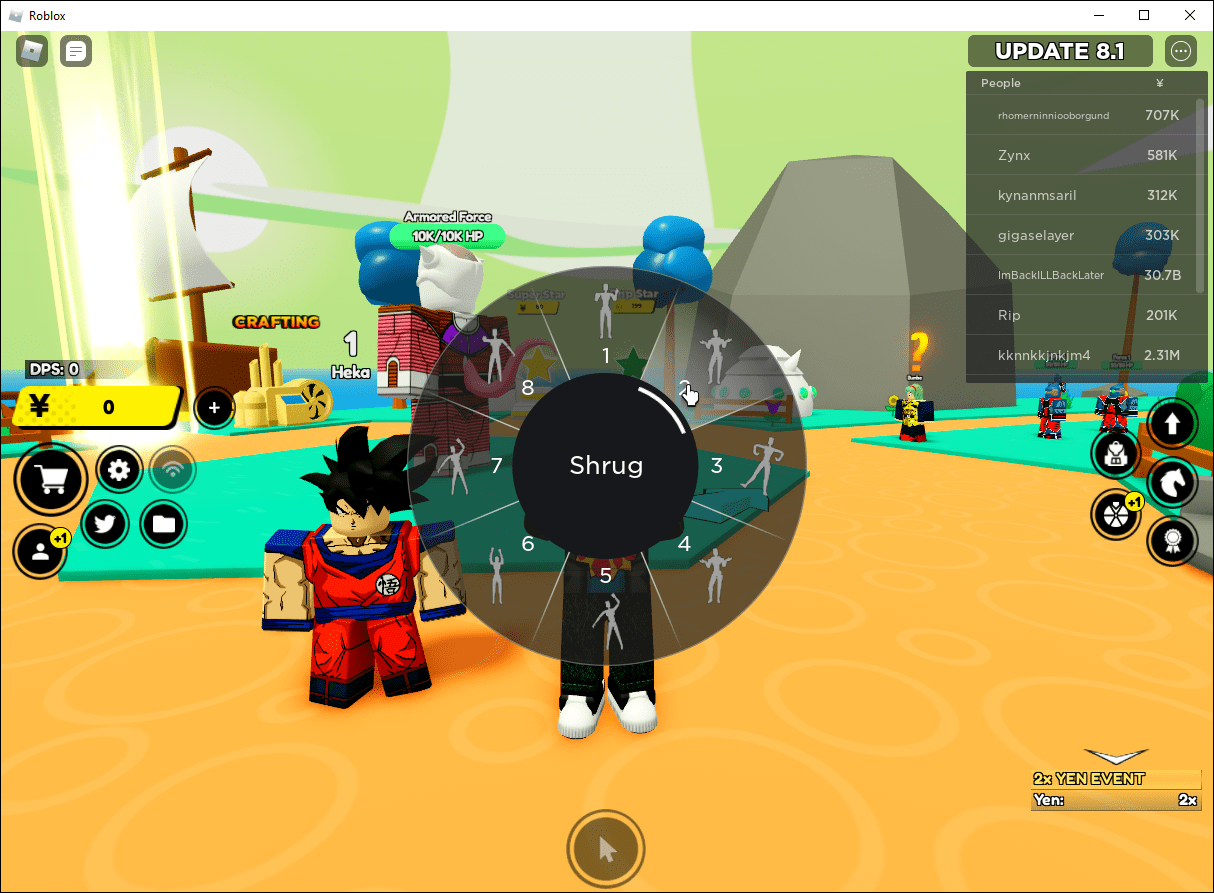
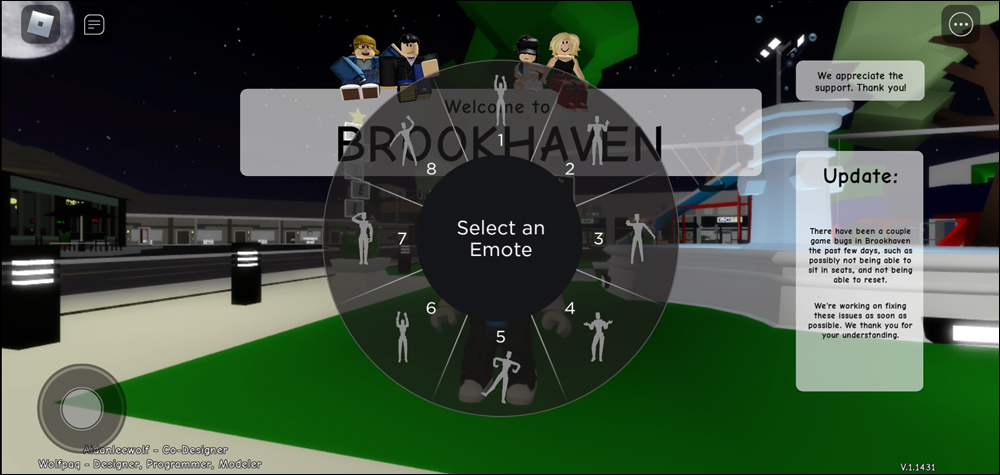
The most straightforward way is via the Emote Menu. You can typically access this by clicking the icon resembling an avatar or a chat bubble with an emoji, usually located in the top-left corner of your screen within most Roblox games. Once opened, you'll see a selection of available emotes, often arranged in a wheel or grid. Simply click on the emote you wish to perform, and your avatar will execute the action. For a more direct approach, especially for those quick reactions, chat commands are your best friend. Press the 'slash' key (/) to open the chat window, then type in the command for your desired emote. Common default emotes include '/e dance1', '/e wave', '/e point', or '/e laugh'. Many games also feature custom emotes or animations unique to their experience. Knowing these commands allows for rapid deployment without navigating a menu, perfect for conveying immediate reactions or celebrating a win.
Where can I find the emote menu on Roblox PC?
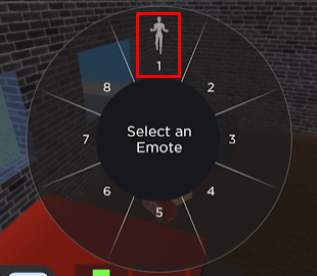
The emote menu on Roblox PC is typically found in the top-left corner of your game screen. It often appears as an icon of a person waving or a square with an emoji face. Clicking this icon will bring up your emote wheel or selection grid. Some games might integrate it slightly differently within their custom UI, but the top-left is the standard location for most experiences as of 2026. If you cannot locate it, try looking for a general interaction or character menu, as it might be nested within. This menu is your central hub for visually selecting all your equipped and available emotes.
Upon launching any Roblox experience, your eyes should immediately dart to the upper left region of your monitor. Look for a small, easily distinguishable icon. This icon is universally designed to represent avatar actions or expressions. Clicking it reveals your personalized emote library. This visual interface is particularly helpful for newer players or when you want to browse your entire collection before making a choice. Remember, the availability and specific appearance of emotes in this menu can vary based on the game you're in, as developers sometimes disable or override default emotes with their own custom animations. Always confirm your equipped emotes in your Avatar Editor on the Roblox website or app before diving into a game if you want specific expressions ready.
What are the common chat commands to use emotes in Roblox on PC?
Common chat commands for emotes on Roblox PC follow a simple '/e [emote_name]' format. The most frequently used default emotes include '/e wave', '/e point', '/e cheer', '/e laugh', '/e dance', and '/e dance2' or '/e dance3' for variations. Many games also support '/e say', '/e sleep', or '/e fall'. To use them, press the '/' key to open chat, type the command, and hit Enter. This method is incredibly fast and efficient for players who want to execute emotes without breaking their gameplay flow.
These commands are universal across most Roblox experiences, making them incredibly reliable. For example, if you want your avatar to perform a classic wave, simply type '/e wave' into the chat box. Want to break into a groovy dance? Try '/e dance1', '/e dance2', or '/e dance3' to see different styles. These shortcuts are invaluable, especially in competitive games or social hubs where rapid interaction is key. It's also worth noting that many community-created games introduce their own unique chat commands for custom animations, so always keep an eye out for in-game tutorials or community tips that might reveal these specific actions. Memorizing a few core commands can significantly enhance your spontaneous interaction capabilities.
Can I customize my emote wheel and add new emotes on Roblox PC?
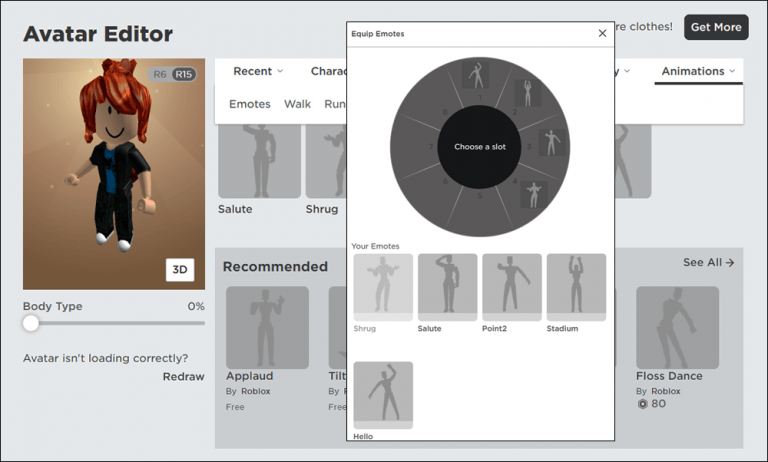
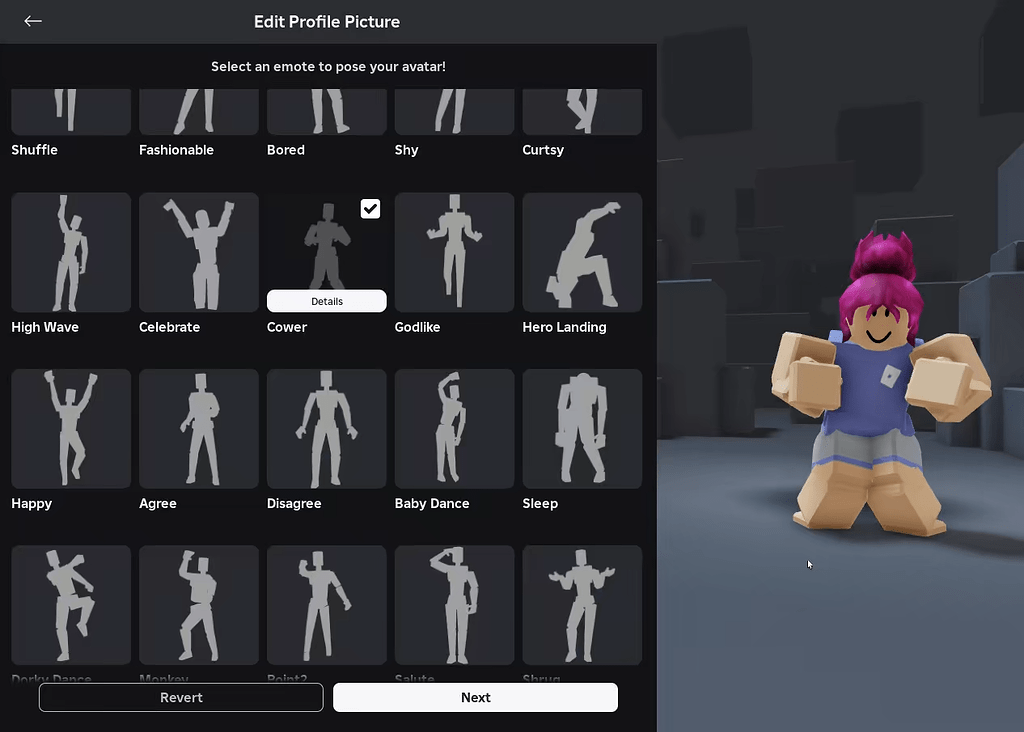
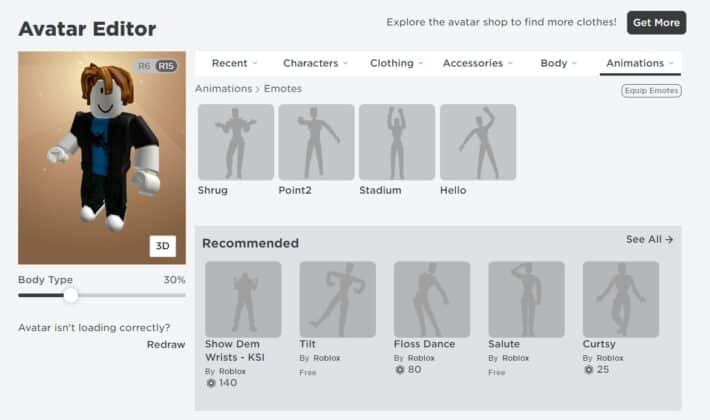
Yes, you absolutely can customize your emote wheel and add new emotes on Roblox PC. This is done primarily through the Roblox Avatar Editor, accessible from the main Roblox website or application. From there, you can browse and equip emotes you've acquired, which will then appear in your in-game emote menu. New emotes can be obtained from the Avatar Shop, through special events, or sometimes as rewards within specific games. Customization allows you to curate your favorite expressions, ensuring quick access to the emotes that best represent your style and personality.
The process is straightforward. Navigate to the Roblox website, log in, and click on 'Avatar' in the left-hand menu. Within the Avatar Editor, select the 'Emotes' tab. Here, you'll see your owned emotes. You can drag and drop them into your active emote slots, usually up to 8 slots for quick access in-game. To acquire new emotes, head to the 'Avatar Shop' and filter by 'Animations' or 'Emotes'. You'll find a vast selection, some free, many purchasable with Robux. Developers also frequently release event-exclusive emotes or integrate them as progression rewards within their games, so staying active and exploring new experiences is a great way to expand your collection. Keeping your emote wheel fresh with the latest and greatest expressions is part of the fun in Roblox 2026!
Why aren't my emotes working in a specific Roblox game on PC?
If your emotes aren't working in a specific Roblox game on PC, there are several potential reasons. Firstly, the game developer might have disabled default emotes or implemented their own custom emote system, which overrides the standard Roblox functionality. Secondly, you might not have the emotes equipped in your Avatar Editor. Thirdly, temporary server glitches or a poor internet connection could be interfering. Lastly, some games restrict emotes in certain zones or during specific gameplay segments to maintain focus or atmosphere. Always check the game's description or in-game instructions for any specific emote rules.
A quick troubleshooting checklist for non-functioning emotes includes: 1. Verify Emote Equipping: Head to your Avatar Editor on the Roblox website and ensure the emotes you intend to use are actively equipped in your slots. Unequipped emotes won't appear in-game. 2. Check Game Specifics: Some experiences, particularly role-playing games or story-driven adventures, might intentionally disable or replace standard emotes with custom ones to fit their theme. Look for an in-game UI or chat commands specific to that game. 3. Restart Roblox: Sometimes a simple restart of the Roblox client or even your PC can resolve minor software glitches. 4. Internet Connection: A stable internet connection is crucial. Lag or packet loss can sometimes prevent emote commands from registering correctly. 5. Bug Reports: If the issue persists across multiple games where emotes should work, consider reporting it to Roblox Support, especially if it's a new or widespread problem in 2026.
Are emotes important for Roblox gameplay and social interaction for PC gamers?
Absolutely, emotes are highly important for Roblox gameplay and social interaction, especially for PC gamers who value nuanced communication. They allow players to express emotions, react to events, and engage with others in ways that text chat alone cannot. Emotes enhance role-playing, celebrate victories, and even convey non-verbal cues during teamwork, making interactions richer and more immersive. In 2026, where virtual presence is paramount, a well-timed emote can define your personality and connection within the metaverse, turning a simple game into a memorable social experience.
For the modern PC gamer, who often interacts in complex, social online environments, emotes are far more than just visual flair. They are a fundamental layer of communication. Imagine trying to convey excitement after a difficult boss fight or empathy for a fallen teammate using only text. An emote like a 'cheer' or 'sad' animation instantly communicates that emotion, transcending language barriers and adding a layer of authenticity to your avatar's presence. In role-playing games, emotes are critical for character portrayal, allowing you to act out scenarios without typing lengthy descriptions. They contribute significantly to the game's atmosphere and the overall sense of community, allowing for spontaneous, joyful, and often hilarious interactions that define the Roblox experience. Neglecting emotes is akin to playing a multiplayer game without voice chat; you're simply missing out on a vital dimension of interaction.
How do I discover and acquire new emotes in Roblox in 2026?
Discovering and acquiring new emotes in Roblox in 2026 involves a few key avenues. The primary source is the Avatar Shop on the Roblox website or app, where you can purchase emotes using Robux. Beyond the shop, new emotes are frequently introduced through seasonal events, game-specific rewards, or occasionally as part of promotional bundles. Staying engaged with official Roblox announcements and exploring popular, updated games are your best bets for finding the latest and most unique expressions. Many free emotes are also released periodically, often tied to promotional codes or limited-time events, so keep an eye on community news.
To start your hunt, head to the Avatar Shop. Use the filters to select 'Animations' and then 'Emotes' to browse the full catalog. You'll find everything from classic dances to quirky reactions, with new additions regularly. Prices vary, so look out for sales or bundles if you're keen on expanding your collection efficiently. Beyond direct purchases, be vigilant for in-game events. Roblox consistently hosts seasonal events like Halloween or holiday celebrations, which often feature exclusive emotes as rewards for completing quests or participating in activities. Furthermore, many popular games, particularly those with a strong community focus or battle passes, will offer unique emotes specific to their experience. These often require dedicated playtime or achieving certain milestones within the game. Lastly, always keep an eye on Roblox's official social media channels and reputable fan sites, as they often announce free promo codes for emotes or highlight upcoming releases. Staying informed is the best strategy for an enriched emote collection in 2026.
What are some advanced tips for using emotes in Roblox PC for expert players?
For expert Roblox PC players, advanced emote usage revolves around speed, context, and creative combination. First, master keyboard shortcuts by assigning frequently used emotes to easily accessible keys using third-party remapping software, though Roblox itself doesn't offer native in-game keybinds beyond chat commands. Second, develop a sense of contextual timing, deploying emotes precisely when they amplify a moment, like a perfectly timed 'laugh' after a friend's mishap or a 'cheer' during a close win. Third, learn to chain emotes or combine them with avatar movements for unique visual effects, creating your own mini-performances. Finally, explore game-specific emotes and hidden animations in developer consoles for deeper immersion and unique expressions only known to savvy players.
Going beyond the basics, a true emote maestro understands that timing is everything. A 'point' emote becomes incredibly powerful when used to direct attention to a hidden object or an approaching enemy, rather than just pointing aimlessly. Experiment with combining short movements, like a quick jump or turn, immediately followed by an emote to create dynamic transitions. For example, a quick spin into a 'dance' emote can look surprisingly fluid. Furthermore, stay updated on individual game mechanics. Many Roblox experiences feature unique animations or developer-specific emotes that aren't part of the general Roblox catalog but are triggered by specific in-game actions, commands, or items. Discovering these hidden gems can give you an edge in social situations and demonstrate a deeper understanding of the game world. Ultimately, advanced emote usage is about making your avatar feel alive and reactive, turning every interaction into a memorable moment.
Author Bio: Alex 'PixelPro' Chen is a seasoned PC gaming enthusiast and content strategist with over a decade of experience dissecting game mechanics and optimizing online experiences. Specializing in titles like Roblox, Alex consistently provides actionable insights for gamers seeking to enhance their gameplay and social interactions, ensuring every click and command counts in the ever-evolving digital landscape of 2026.